
Your IP address acts like a digital fingerprint that reveals your location, internet provider, and online activities to websites, advertisers, and potential bad actors. This guide helps everyday internet users, remote workers, and privacy-conscious individuals discover exactly what their IP address exposes and how to find it using simple methods.
Knowing how to check your IP matters for protecting your privacy, troubleshooting connection issues, and understanding what information you’re sharing online. We’ll walk you through built-in system tools that show your IP instantly, plus reliable online checker websites that reveal additional details about your digital footprint. You’ll also learn mobile-specific techniques and advanced monitoring strategies to keep your online presence secure.
Understanding What Your IP Address Reveals About You
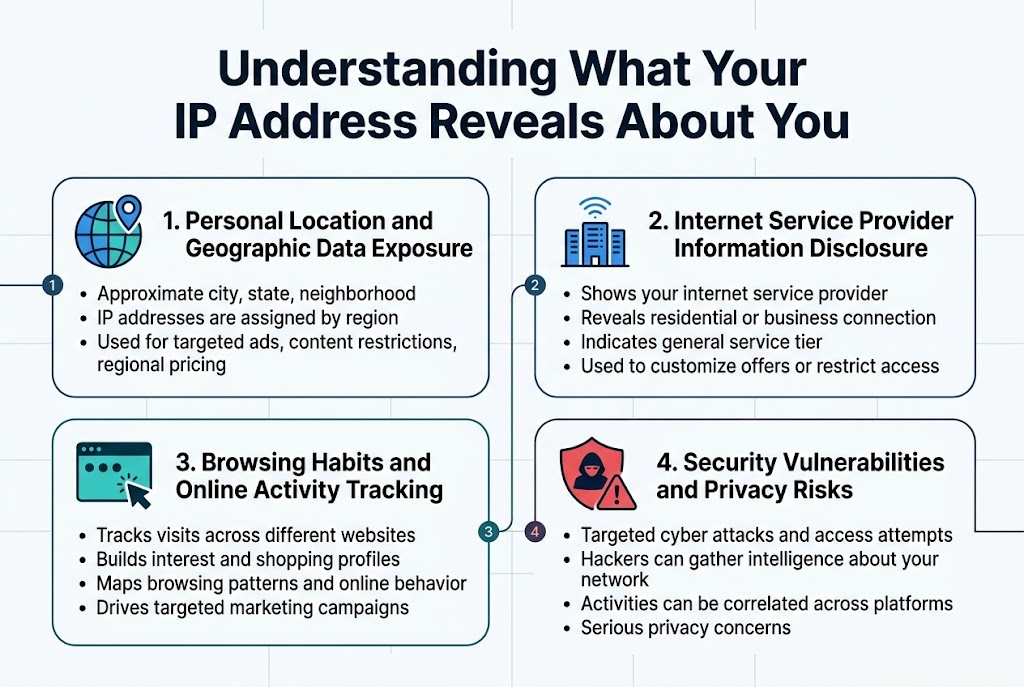
Personal Location and Geographic Data Exposure
Your IP address acts like a digital fingerprint that reveals your approximate geographic location. Most IP addresses can be traced to your city, state, and sometimes even your neighbourhood. This happens because internet service providers assign IP addresses based on geographic regions. Websites and apps use this location data for targeted advertising, content restrictions, and regional pricing.
Internet Service Provider Information Disclosure
Every IP address contains clear information about your internet service provider. This data shows which company provides your internet connection and can reveal details about your connection type, whether you’re using residential or business internet, and your general service tier. Companies often use this information to customise their offerings or restrict access to certain services.
Browsing Habits and Online Activity Tracking
Your IP address becomes a tracking tool that follows you across different websites. Online advertisers build detailed profiles of your interests by connecting your IP to the sites you visit. This creates a comprehensive picture of your browsing patterns, shopping preferences, and online behaviour that companies use for targeted marketing campaigns.
Security Vulnerabilities and Privacy Risks
Exposed IP addresses create multiple security risks, including targeted cyber attacks and unauthorised access attempts. Hackers can use your IP to launch specific attacks against your network or gather intelligence about your digital habits. Your IP also makes it easier for malicious actors to correlate your online activities across different platforms, creating serious privacy concerns.
Using Built-in System Tools to Find Your IP
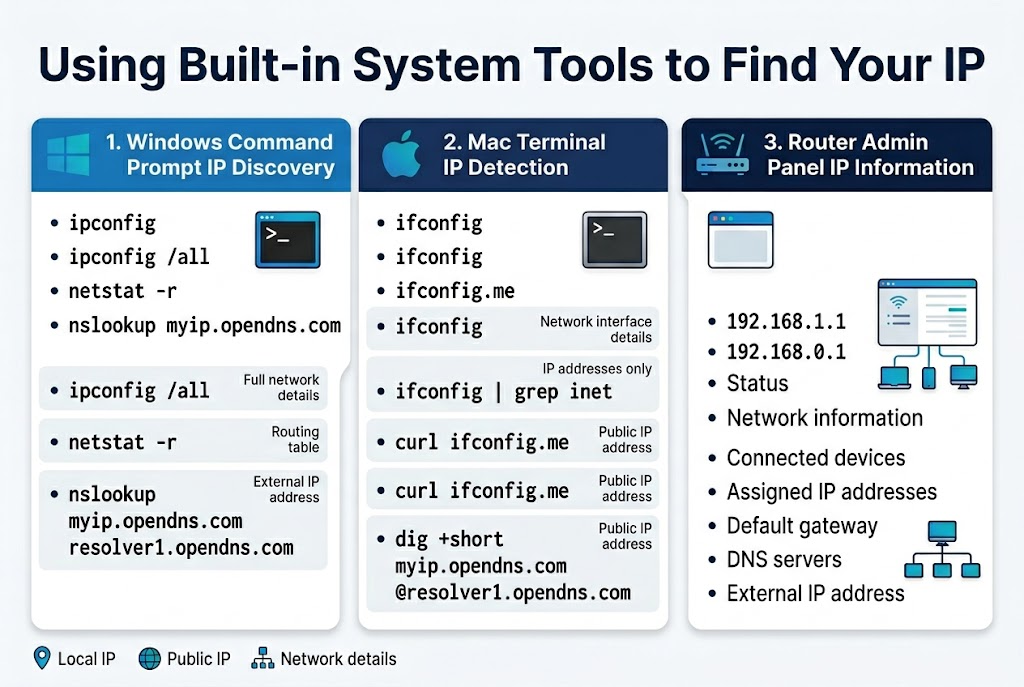
Windows Command Prompt IP Discovery Methods
Windows users can quickly find their IP address through Command Prompt using several built-in commands. The most straightforward method involves typing ipconfig to display basic network adapter information, including your local IP address. Use it ipconfig /all to see comprehensive network configuration data, including subnet masks, default gateways, and DNS servers.
Advanced users can leverage it netstat -r to view routing tables or nslookup myip.opendns.com resolver1.opendns.com to discover their external IP address directly from the command line.
Mac Terminal Commands for IP Detection
Mac users have powerful Terminal commands at their disposal for IP discovery. The ifconfig command displays detailed network interface information while filtering results to show only IP addresses. For external IP curl ifconfig.me or dig +short myip.opendns.com @resolver1.opendns.com to get your public-facing address.
Router Admin Panel IP Information Access
Most home routers provide comprehensive IP information through their web-based admin panels. Access your router by typing its default gateway address (typically 192.168.1.1 or 192.168.0.1) into a web browser. The status or network information section displays connected devices, their assigned IP addresses, and network configuration details. This method reveals both your internal network topology and external IP address assigned by your internet service provider.
Online IP Checker Websites and Services
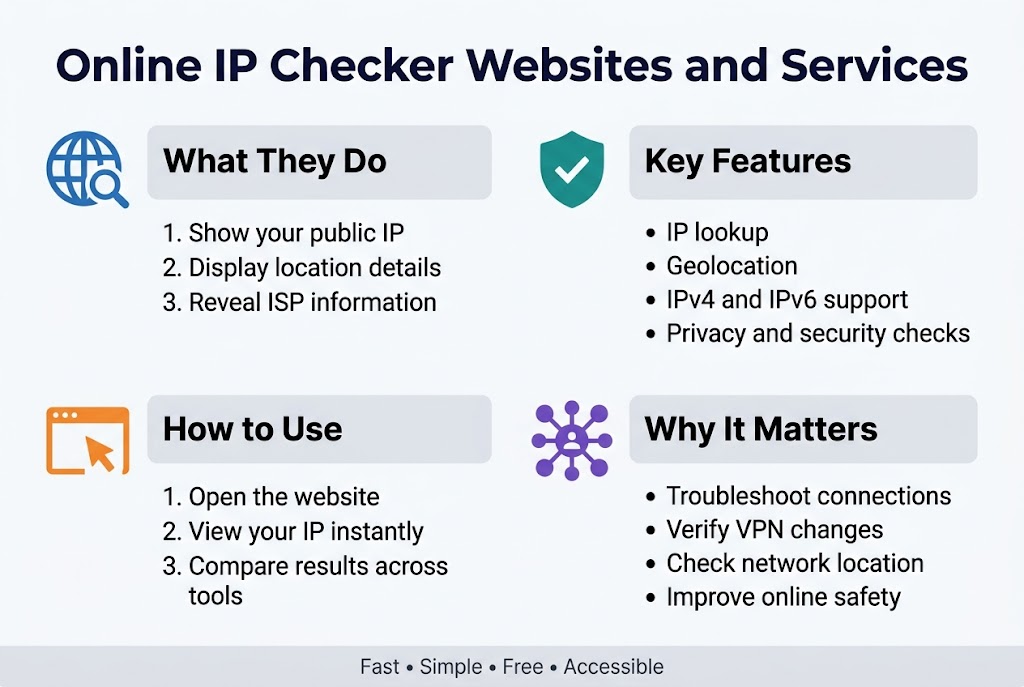
Free Web-based IP Lookup Tools
The simplest way to check your IP address involves visiting dedicated websites that instantly display your public IP information. Popular options include WhatIsMyIPAddress.com, IPChicken.com, and Google’s “What is my IP?” search query. These tools show your current IP address, location data, and internet service provider details without requiring downloads or installations.
Most free IP checkers also provide basic geolocation information, revealing your approximate city, region, and country. Some services offer additional details like your browser type, operating system, and connection speed, making them valuable for troubleshooting network issues or verifying VPN connections.
Advanced IP Analysis Platforms
Professional IP analysis platforms deliver comprehensive network intelligence beyond basic address lookup. Services like IPinfo.io, MaxMind, and Shodan provide detailed reports including ISP information, threat intelligence, proxy detection, and historical IP data. These platforms often include APIs for developers and bulk lookup capabilities for businesses.
Advanced tools can identify VPN usage, detect malicious activity, and provide reputation scores for IP addresses. They’re particularly useful for cybersecurity professionals, web developers, and businesses needing to analyse traffic patterns or implement geo-blocking features.
Mobile-friendly IP Detection Services
Mobile users can access IP checking services through responsive websites optimised for smartphones and tablets. Apps like “What’s My IP Address” and “Network Analyser” provide quick IP lookup functionality with user-friendly interfaces designed for touch navigation. These mobile solutions often include additional network diagnostic tools.
Many mobile IP checkers work offline by displaying cached network information, while others offer widget functionality for quick access from your device’s home screen. Some apps integrate with VPN services to verify connection status and ensure your IP address changes properly when switching server locations.
Real-time IP Monitoring Solutions
Real-time monitoring tools track IP address changes and provide instant notifications when your public IP shifts. Services like DynDNS, No-IP, and IPAlert monitor your connection continuously, sending email or SMS alerts when changes occur. This proves essential for users with dynamic IP addresses or those running servers from home connections.
These monitoring solutions often integrate with dynamic DNS services, automatically updating domain records when IP addresses change. Business-grade monitoring platforms provide dashboards showing IP history, uptime statistics, and detailed logs.
Browser-based IP Detection Methods
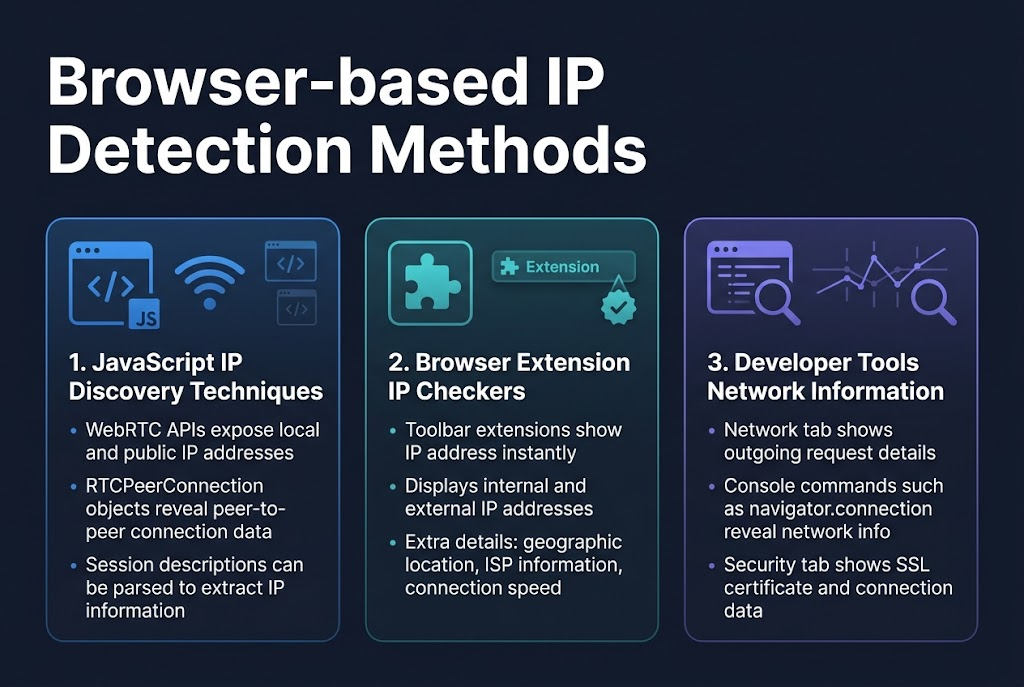
JavaScript IP Discovery Techniques
JavaScript can reveal your IP address through WebRTC APIs that browsers use for real-time communication. Modern browsers expose local and public IP addresses when establishing peer-to-peer connections, even without user consent. Simple JavaScript code snippets can extract this information by creating RTCPeerConnection objects and parsing the generated session descriptions.
Browser Extension IP Checkers
Dedicated browser extensions provide instant IP address information directly in your toolbar. Popular extensions like “What’s My IP” and “IP Address and Domain Information” display both internal and external IP addresses with single clicks. These tools often include additional network details like geographic location, ISP information, and connection speed, making them comprehensive solutions for quick IP verification.
Developer Tools Network Information
Browser developer tools offer detailed network information through the Network tab and Console commands. You can inspect outgoing requests to see your IP address in connection headers or use console commands navigator.connection for network interface details. The Security tab also displays SSL certificate information that can reveal IP-related connection data.
Network Configuration IP Identification
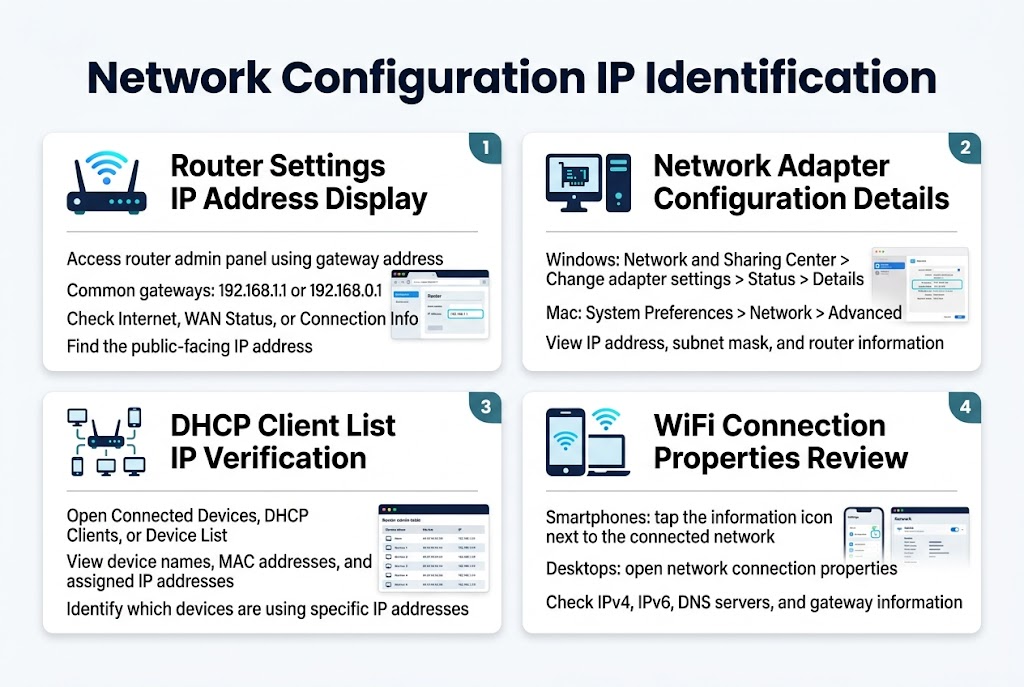
Router Settings IP Address Display
Your router’s admin panel serves as a comprehensive dashboard for network IP information. Access it by typing your gateway address (typically 192.168.1.1 or 192.168.0.1) into your browser. The main status page displays your external IP address alongside internal network details. Look for sections labelled “Internet”, “WAN Status”, or “Connection Info” to find your public-facing IP address.
Network Adapter Configuration Details
Windows users can access detailed IP information through the Network and Sharing Center by clicking “Change adapter settings”. Right-click your active connection and select “Status”, then “Details” to view comprehensive network configuration data. Mac users should navigate to System Preferences > Network, select their connection, and click “Advanced” for detailed TCP/IP settings, including IP address, subnet mask, and router information.
DHCP Client List IP Verification
Most routers maintain a DHCP client table showing all connected devices and their assigned IP addresses. Access this through your router’s admin interface under sections like “Connected Devices”, “DHCP Clients”, or “Device List”. This view displays device names, MAC addresses, and current IP assignments, making it easy to identify which devices are using specific IP addresses on your network.
WiFi Connection Properties Review
Mobile devices and laptops store detailed WiFi connection properties that reveal IP address information. On smartphones, access WiFi settings and tap the information icon next to your connected network. Desktop operating systems provide similar details through network connection properties, showing both IPv4 and IPv6 addresses, DNS servers, and gateway information for active wireless connections.
Mobile Device IP Checking Techniques
Smartphone Settings IP Location
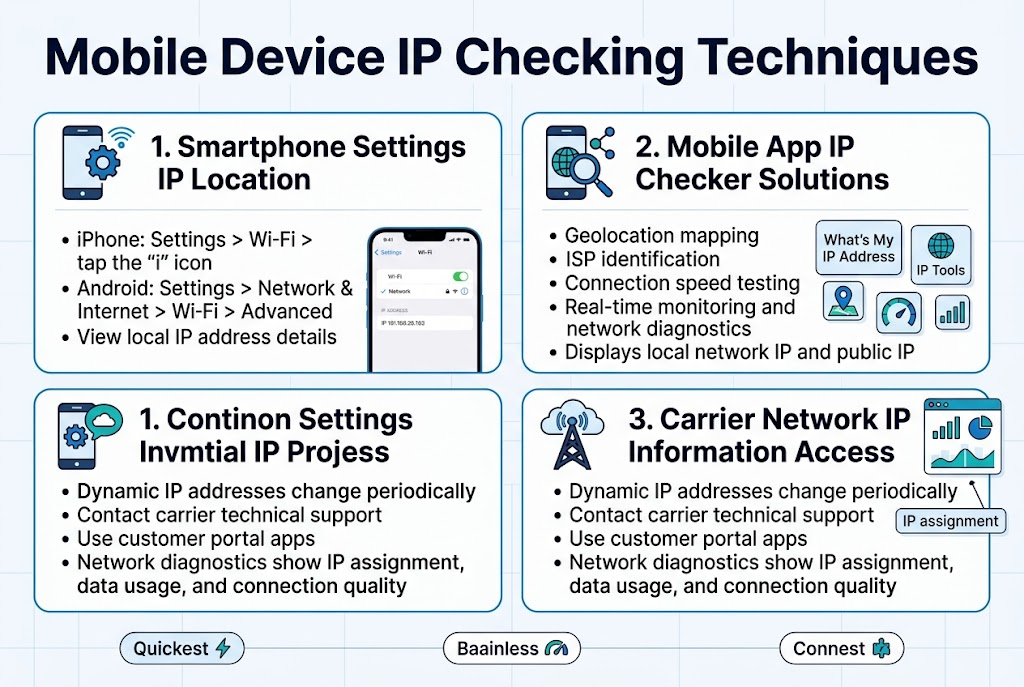
Your phone’s built-in settings provide the quickest way to check your IP address without downloading additional apps. On iPhones, navigate to Settings > Wi-Fi, tap the “i” icon next to your connected network, and scroll down to view your IP address details. Android users can find this information under Settings > Network & Internet > Wi-Fi, select their active connection, and tap “Advanced” to reveal IP configuration data.
Mobile App IP Checker Solutions
Dedicated IP checker apps offer enhanced features like geolocation mapping, ISP identification, and connection speed testing. Popular options include “What’s My IP Address” and “IP Tools” which provide real-time monitoring capabilities and detailed network diagnostics. These apps often display both your local network IP and public-facing IP address, making them valuable for troubleshooting connectivity issues.
Carrier Network IP Information Access
Mobile carriers assign dynamic IP addresses that change periodically, and accessing this information requires understanding your network configuration. Contact your carrier’s technical support for detailed IP allocation records or use their customer portal apps. Some carriers provide network diagnostic tools that reveal your current IP assignment, data usage patterns, and connection quality metrics for comprehensive network analysis.
Advanced IP Monitoring and Protection Strategies
VPN Services for IP Address Masking
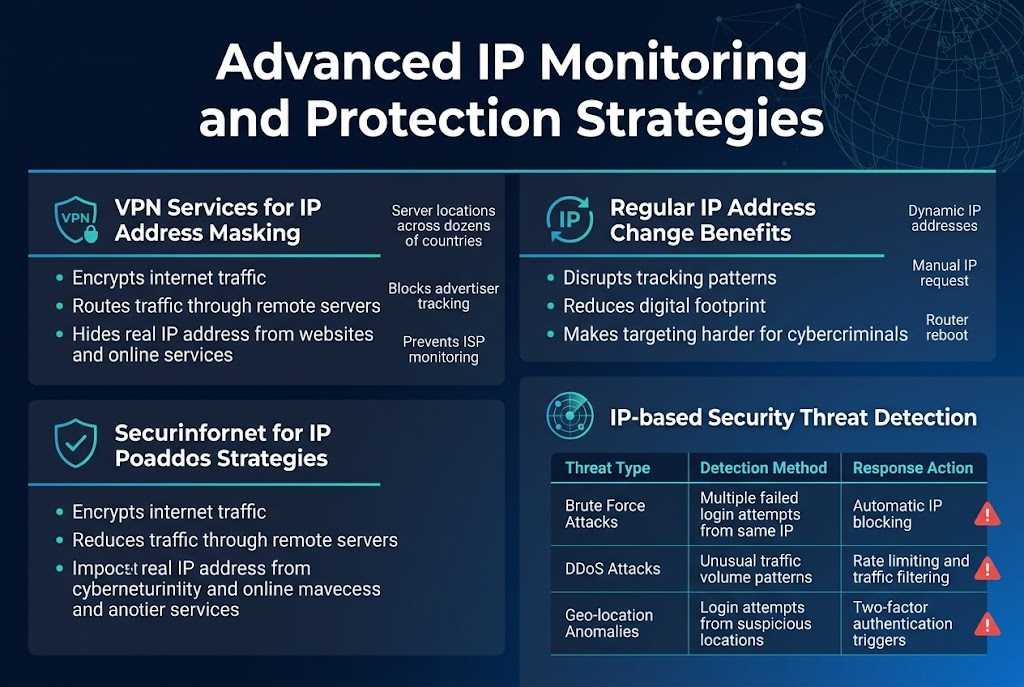
VPN services encrypt your internet traffic and route it through remote servers, effectively hiding your real IP address from websites and online services. Premium VPN providers offer server locations across dozens of countries, allowing you to appear as if you’re browsing from virtually anywhere in the world. This technology blocks tracking attempts by advertisers and prevents your internet service provider from monitoring your online activities.
Regular IP Address Change Benefits
Changing your IP address regularly disrupts tracking patterns that data brokers and malicious actors use to build profiles about your online behavior. Many internet service providers assign dynamic IP addresses that change automatically, but you can also manually request new addresses or use router reboots to trigger changes. This practice reduces your digital footprint and makes it harder for cybercriminals to target your specific network connection.
IP-based Security Threat Detection
| Threat Type | Detection Method | Response Action |
|---|---|---|
| Brute Force Attacks | Multiple failed login attempts from same IP | Automatic IP blocking |
| DDoS Attacks | Unusual traffic volume patterns | Rate limiting and traffic filtering |
| Geo-location Anomalies | Login attempts from suspicious locations | Two-factor authentication triggers |
Modern security systems analyze IP addresses in real-time to identify suspicious activities. These tools flag unusual login patterns, detect connections from known malicious IP ranges, and alert administrators when users access systems from unexpected geographical locations.
Corporate Network IP Management
Enterprise networks require sophisticated IP address management (IPAM) solutions to track device assignments, monitor network usage, and ensure compliance with security policies. Network administrators use centralized dashboards to oversee IP allocation across multiple subnets, automatically assign addresses to new devices, and maintain detailed logs for security audits. These systems integrate with firewalls and intrusion detection systems to provide comprehensive network visibility.
Privacy-focused IP Monitoring Tools
Specialized monitoring applications help users track how their IP addresses appear across different websites and services. These tools provide real-time alerts when your IP address changes, scan for DNS leaks that might expose your true location, and verify that privacy tools like VPNs are working correctly. Popular options include browser extensions that display your current IP address and dedicated applications that perform comprehensive privacy assessments of your network connection.
Conclusion
Knowing how to check your IP address gives you real control over your online privacy and security. Each method we’ve covered serves different purposes – from quick browser checks for basic info to advanced monitoring tools for serious protection. Your IP address reveals more than you might think about your location and online activities, making it smart to keep tabs on what information you’re sharing.
Taking charge of your digital footprint starts with understanding these simple IP checking techniques. Pick the methods that work best for your needs, whether that’s using built-in system tools for quick checks or setting up monitoring for ongoing protection. Don’t wait until privacy becomes a problem – start checking your IP regularly and take steps to protect what matters most about your online presence.